Veloura Royale App Download for Android: APK Install Guide Philippines
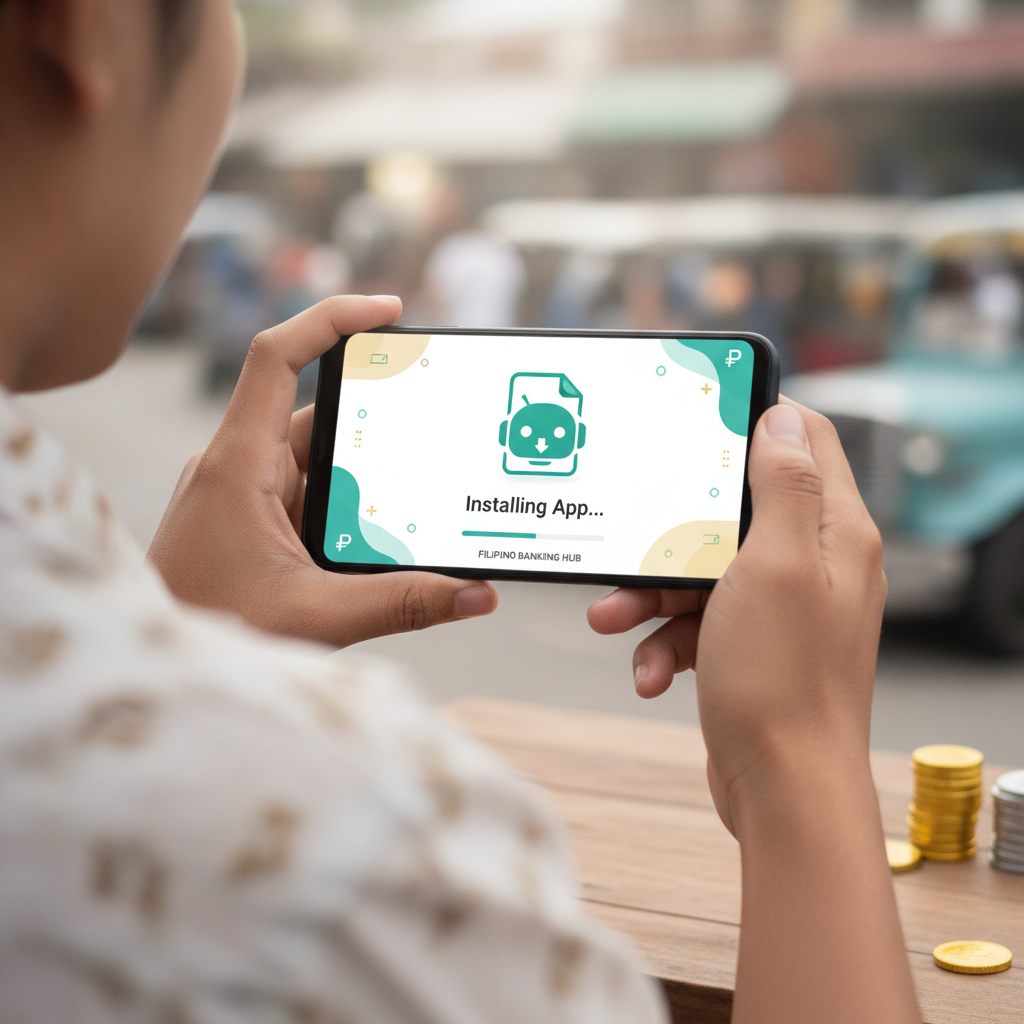
Where to Find the Official Veloura Royale Android APK Download Link
The Veloura Royale Android app is not available on the Google Play Store. This is normal for real-money casino and sportsbook apps in the Philippines—Google's policies restrict these apps from the Play Store, so operators distribute them as APK files through their official websites.
To download the legitimate Veloura Royale APK, open your Android phone's browser and visit the official Veloura Royale website. Look for a prominent "Download" or "Mobile App" button, typically on the homepage or in the main menu. The site will detect that you're on an Android device and offer the correct APK file.
Do not download the APK from third-party sites, app repositories, or links shared through social media or messaging apps. Fake casino apps designed to steal login credentials or payment information circulate regularly. The only safe source is the official Veloura Royale domain.
If you already have an account, you can also find the download link by logging in through your mobile browser. Many operators place an app download prompt on the account dashboard for existing players.
Enabling 'Install from Unknown Sources' on Your Android Phone
Because the Veloura Royale APK comes from outside the Play Store, your Android phone will block installation by default. You need to grant permission to install apps from "unknown sources"—in this case, your browser.
The exact steps vary slightly depending on your Android version, but the process is similar across most devices:
For Android 8.0 (Oreo) and newer:
- When you tap the downloaded APK file, Android will display a message that installation is blocked.
- Tap "Settings" in that message. This opens the "Install unknown apps" screen.
- Find the browser you used to download the file (Chrome, Firefox, or your phone's default browser).
- Toggle the switch to allow that browser to install apps.
For Android 7.1 (Nougat) and older:
- Open your phone's Settings app.
- Scroll to "Security" or "Lock screen and security."
- Find the option called "Unknown sources" and turn it on.
- Confirm the warning that appears.
Once you've enabled this setting, you can install the Veloura Royale APK. For security, you can turn off "unknown sources" again after installation is complete—though you'll need to re-enable it whenever you want to update the app.
Step-by-Step APK Installation Walkthrough
After downloading the APK and adjusting your security settings, follow these steps to install the Veloura Royale app:
- Locate the downloaded file. Open your phone's file manager or look in the "Downloads" folder. The file will be named something like "VelouraRoyale.apk" or similar, and it will have a size of 50–120 MB depending on the version.
- Tap the APK file. Your phone will display an installation screen showing the app name, required permissions, and storage space needed.
- Review the permissions. The Veloura Royale app will request access to features like storage (to cache game graphics), internet connection, and possibly notifications. These are standard for casino and sportsbook apps. If the permission list includes anything unusual—camera access, contacts, SMS—stop and verify you have the official APK.
- Tap "Install." The process takes 10–30 seconds. A progress bar shows installation status.
- Tap "Open" when installation completes. Alternatively, you can find the Veloura Royale icon on your home screen or app drawer and launch it from there.
- Log in with your existing credentials. Enter the username and password you use on the Veloura Royale website. The app will sync your account balance, active bets, and transaction history.
If you encounter an error message during installation—such as "App not installed" or "There was a problem parsing the package"—the APK file may be corrupted. Delete it, clear your browser cache, and download the file again from the official site.
Verifying App Authenticity and Avoiding Fake Apps
Fake casino apps are a real threat in the Philippines. Scammers clone legitimate sites, create look-alike apps, and distribute them through phishing links or unofficial app stores. These fake apps collect your login and banking details, then disappear.
Here's how to verify you have the authentic Veloura Royale app:
Check the download source. Only download from the official Veloura Royale website. If someone sends you a direct APK link through Telegram, Viber, or Facebook Messenger, ignore it—even if the message appears to come from a friend or a Veloura Royale page.
Inspect the app icon and name. After installation, the app icon should match the branding on the Veloura Royale website. The app name in your phone's settings should be "Veloura Royale" or similar, not a generic name like "Casino App" or a misspelled variation.
Test login and balance display. Open the app and log in. Your peso balance, pending bets, and transaction history should match what you see on the mobile website. If the app shows a different balance or asks you to make a "verification deposit," it's a fake—uninstall immediately.
Look for HTTPS and account sync. The app should use a secure connection (you'll see account details load correctly). Legitimate apps also include links to customer support and responsible gambling resources. If the app lacks a help section or displays placeholder text, it's likely fraudulent.
Check file size and update frequency. The official Veloura Royale APK is typically 50–120 MB. A suspiciously small file (under 10 MB) is a red flag. Real casino apps also receive regular updates every few weeks to add features and fix bugs. An app that never updates is likely abandoned or fake.
If you suspect you've installed a fake app, uninstall it immediately, change your Veloura Royale password through the official website, and contact customer support to report the issue.
Updating the App When a New Version Is Released
Veloura Royale releases app updates periodically to improve performance, add payment options, and introduce new games or betting markets. Unlike Play Store apps, APK-based apps do not update automatically.
In-app update prompts: When you open the Veloura Royale app after a new version is released, you'll usually see a notification or pop-up message. Tap "Update" or "Download," and the app will redirect you to the download page on the official website. Follow the same installation steps you used for the initial install—download the new APK and tap the file to replace the old version.
Manual updates: If you don't see an update prompt but want to check for a new version, visit the Veloura Royale website and navigate to the mobile app section. The site will display the current version number. Compare it to the version listed in your phone's app settings (Settings > Apps > Veloura Royale > App details). If the website shows a higher version number, download and install the new APK.
What happens to your data: Installing an updated APK does not delete your login credentials, saved preferences, or transaction history. The new version overwrites the old app files while preserving your data. You won't need to log in again unless the update includes a security patch that requires re-authentication.
When to update: It's good practice to update within a week of a new release. Older versions may stop working if Veloura Royale changes its backend systems or payment integrations. If you suddenly can't log in, load games, or process a GCash deposit, check whether an app update is available.
Clearing cache after updates: If the updated app feels slow or displays glitches, go to Settings > Apps > Veloura Royale > Storage and tap "Clear cache." This removes temporary files without affecting your login or balance. Avoid tapping "Clear data," which will log you out and reset all preferences.
21+ Only, Responsible Gambling Reminder
Veloura Royale is intended for players aged 21 and over. Online casino and sportsbook play should be a form of entertainment, not a way to make money or solve financial problems.
Set a deposit limit before you play—many players in Metro Manila and the provinces find that budgets of PHP 100–500 per session keep spending in check. Use the self-exclusion or cool-off tools available in the app's account settings if you feel gambling is becoming a problem. Support resources are also available through the National Council on Problem Gambling and similar organizations in the Philippines.
Only bet what you can afford to lose. If you're chasing losses, borrowing money to deposit, or hiding your play from family, it's time to take a break. Responsible gambling keeps the experience enjoyable and sustainable.